Blackmagic Design has once again pushed the boundaries of post-production efficiency with the release of DaVinci Resolve 21. While the update brings a host of AI-driven features, some of the most impactful changes for daily editors are found within the revamped Keyframe and Curves Editor. This update focuses on unifying the user experience, bringing more power to the Edit page, and providing unprecedented control over clip timing and animation.
Here is an overview of the key enhancements that are transforming the animation workflow in version 21.
1. Modernized Retime Curves with 4-Point Bezier Easing
One of the most significant updates in version 21 is the complete overhaul of Retime Curves. In previous versions, retime controls functioned somewhat independently from other clip parameters. Now, they have been revamped to utilize the same 4-point Bezier easing system found throughout the software.
This change allows editors to create complex, non-linear speed ramps with far more grace. Whether you are smoothing out a transition into a freeze frame or creating organic speed changes between clip segments, the new Bezier handles provide the tactile precision required for high-end professional work right on the Edit page.
2. Direct Fusion Property Control
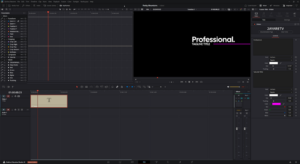
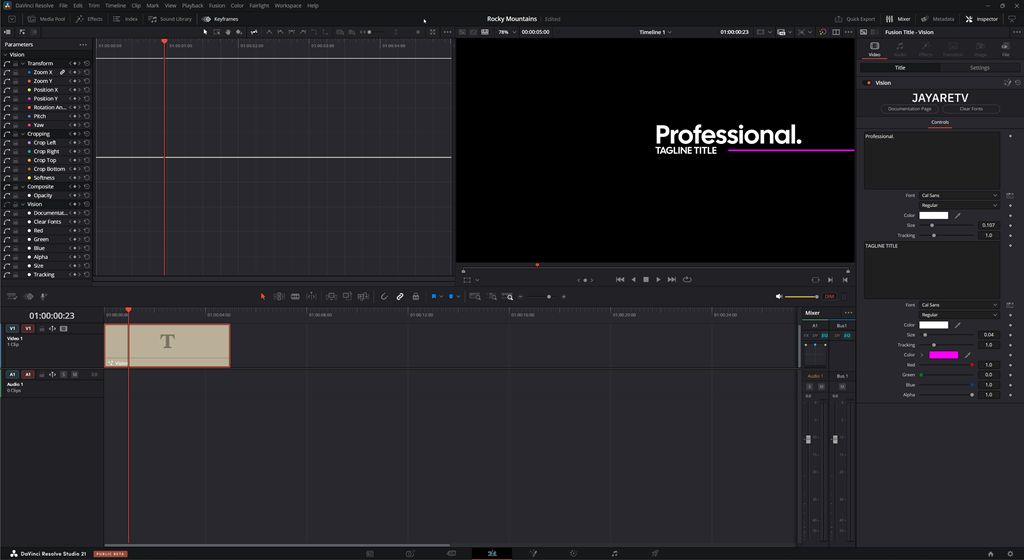
In a massive win for workflow efficiency, DaVinci Resolve 21 now allows users to adjust Fusion effects directly within the Edit page’s Keyframe and Curves Editor. Previously, many Fusion-specific tweaks required a trip to the Fusion tab.
Now, when you select Fusion text, compositions, or clips with Fusion effects, those properties appear inline with your standard inspector effects. This allows for a unified animation environment where you can keyframe and ease Fusion properties alongside your standard transforms and crops.
3. Advanced Keyframe Interpolation & Manipulation
The toolkit for manipulating existing keyframes has been significantly expanded. Resolve 21 introduces more familiar behaviors and automated patterns that reduce the manual labor of animation:
- Enhanced Easing: New “Step In” and “Step Out” options have been added alongside traditional Linear and Ease In/Out behaviors.
- Cyclical Animation: You can now select a group of keyframes and apply Loop, Ping Pong, or Relative settings, automating repetitive motions instantly.
- The Shape Box & Reversal: Editors can now reverse the order of keyframes or use the Shape Box to stretch and compress relative positions—an essential tool for quickly re-timing or slowing down complex animations.
4. Efficient Multi-Clip Keyframing
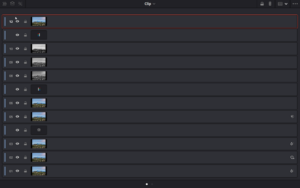
Timeline management has reached a new level of flexibility with Multi-Clip support for keyframes. Whether your clips are stacked vertically on different tracks or arranged sequentially, you can now select a group of clips and enable Keyframe mode to adjust them simultaneously. This eliminates the “one-by-one” bottleneck, allowing for batch adjustments across entire sections of your timeline.
5. Normalized Zoom Mode
To improve visibility during complex edits, the Curves Editor now includes a Normalized Zoom mode. This feature automatically scales all active curves to fill the available vertical space of the editor.
In older versions, viewing multiple parameters with vastly different values (such as a 1% opacity change vs. a 1000-pixel position move) could be visually difficult. Normalized Zoom flattens that curve, letting you clearly see and edit the easing of every parameter regardless of its underlying value, ensuring your focus remains on the “feel” of the animation.