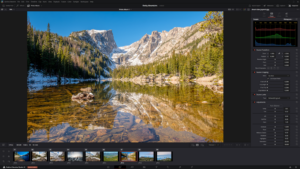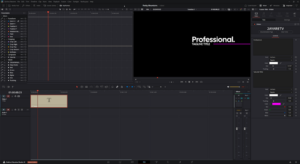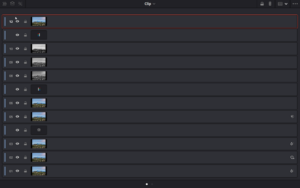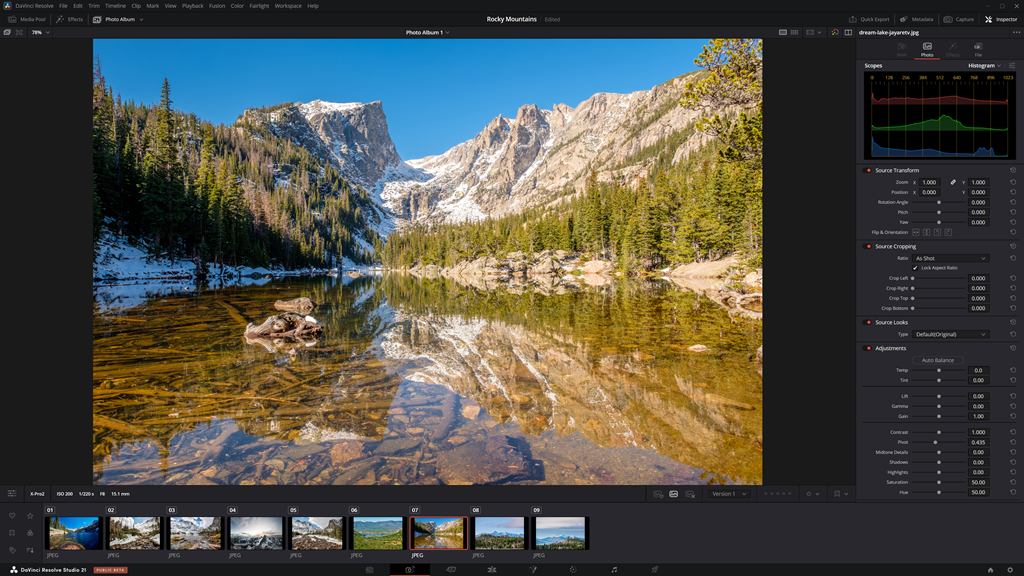
DaVinci Resolve 21 marks a significant milestone by becoming the first professional post-production suite to fully integrate a dedicated Photo Page. This allows users to manage, grade, and organize still photography within the same environment used for high-end cinema and broadcast.
1. Professional Image Management
The Photo Page serves as a central hub for your still library, utilizing the same database-driven architecture as the Media Pool but optimized for photography.
- Integrated Pipeline: Manage tagging, favorites, and ratings within a full image-management ecosystem.
- AI IntelliSearch: Use powerful AI-driven search tools to quickly locate specific images within large libraries.
- Album Collections: Build and manage collections to keep project assets organized.
- Lightroom Integration: You can now import existing Lightroom Catalog files (.lrcat), allowing for a smoother transition from Adobe-centric workflows.
- Cloud Collaboration: Full support for Blackmagic Cloud and Multiuser collaboration means photographers and editors can work on the same project simultaneously from different locations.
2. The Power of DaVinci Color (for Stills)
The most significant advantage of the Photo Page is the ability to use the world’s most advanced color grading engine on high-resolution still images.
- Native Toolset: Access the complete set of DaVinci Color controls, including Power Windows, Film Grain, and Relighting effects.
- Hardware Support: Use DaVinci Color Panels to grade your image library physically.
- Unified Grading: Any adjustments made in the Photo Page inspector are applied at the source level. These automatically populate into Node 1 on the Color Page (using Remote Versions), allowing for a seamless transition if you need to perform more complex node-based grading or use tools like Magic Mask.
- Format Flexibility: The page handles all standard file types including JPG, PNG, and HEIC.
3. Advanced RAW & Camera Support
Resolve 21 significantly expands its handling of professional still formats, moving beyond basic video-RAW support into photography-specific.
- New Native Support: Full support has been added for Canon CR3 and Fujifilm RAF formats.
- Updated/Improved Support: Existing support for Sony ARW and Nikon RAW has been drastically improved, offering better decode performance, more accurate metadata interpretation, and refined RAW controls in the inspector.
- Modern Formats: The update introduces import support for Apple ProRAW and HTJ2K OpenEXR, along with HEIF export capabilities for both macOS and Windows.
4. Live Camera Capture & Tethering
For studio environments, Resolve 21 now supports wired USB tethering for real-time image capture.
- Direct Ingest: Connect Sony or Canon cameras to capture images directly into your project.
- Remote Control: Change program modes, ISO, shutter speed, and aperture directly from the Capture tab.
- Live View: Preview the camera feed in the viewer with reference overlays to ensure perfect framing before hitting capture.
5. Optimized Workflow & Navigation
The interface is designed for speed, allowing you to move fluidly between a photography session and a video edit.
- One-Click Switching: Move from a photo album directly to the Timeline or Fusion page.
- Hand Mode (H Key): A new navigation feature. Press and hold H to pan across an image or double-click to inspect individual pixels without accidentally moving a UI overlay or changing a setting.
- Batch Processing: Quickly export and convert images with new presets designed for print—preserving edited EXIF metadata and allowing for specific pixel density (DPI) adjustments.
6. Essential Shortcuts for the Photo Page
To speed up your workflow, Resolve 21 introduces specific shortcuts for the Photo Panel:
- Rating: Use 0 – 5 to set star ratings.
- Tagging: Press S to mark as a “Good Take” or X to “Reject.”
- Capture: Press C while in the Capture tab to snap a photo.
- Transformation: Use Shift/Cmd + [ or ] to flip or rotate images instantly.
- Resetting: Quickly clear changes using Cmd/Ctrl + R (or Shift + R for specific resets) via the Inspector menu.
Pro Tip for Editors: Because Photo Page grades function similarly to Remote Grades, your images will maintain a consistent look across all albums within a project. If you need a different look for the same photo in a different context, simply duplicate the image in the Media Pool.